
Stylish - Customize Your Web In Chrome & Firefox
Chrome and Firefox have an amazing feature built into their browsers, which allows you to download extensions, also known as plug-ins which enables you to customize your web in whichever way you want. Using 'Stylish' (which I believe is only currently available for Chrome and Firefox - however I am not 100% sure) can customize the appearance of your webpages in any way you like! You can darken them giving them a smooth dark feel, or choose from the huge variety of themes created by users available for download.
Please Note: I am running a Windows 7 64-bit operating system and using the browser Chrome. If what you are using differs, I apologize for any inconvenience you may have due to compatibility.
Please Note: I am running a Windows 7 64-bit operating system and using the browser Chrome. If what you are using differs, I apologize for any inconvenience you may have due to compatibility.
Downloading Stylish
To start customizing your web, install the Stylish add-on into your browser. A browser restart may be required, but will take around 5 seconds. Please save any webpages you do not want to lose.
You can either copy and paste this link into your URL bar: http://userstyles.org/ or click the button below.
(Will open in a new tab)
You can either copy and paste this link into your URL bar: http://userstyles.org/ or click the button below.
(Will open in a new tab)
Once you get to the download website, click either the Firefox link or the Chrome link depending on the browser you are using. I am using Chrome so I will click on the Chrome link. This will then redirect you to a page to install it.
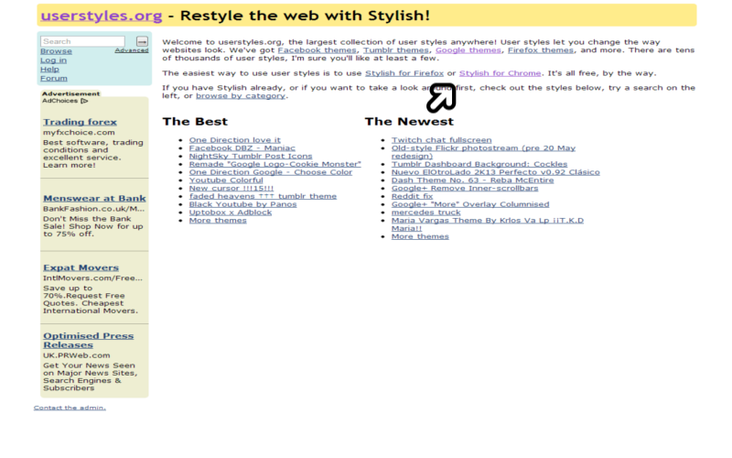
Customizing Webpages
Once you've installed Stylish and you're all ready to go, visit a webpage which you would like to customize (or visit the links below if you like the selected). Then click the Stylish icon (in top right of Chrome) and click 'Find more styles for this site.' This will search for all the themes for that site. You can then keep doing this with your desired webpages and that's it!
Below are some of the themes available for some websites...
Below are some of the themes available for some websites...
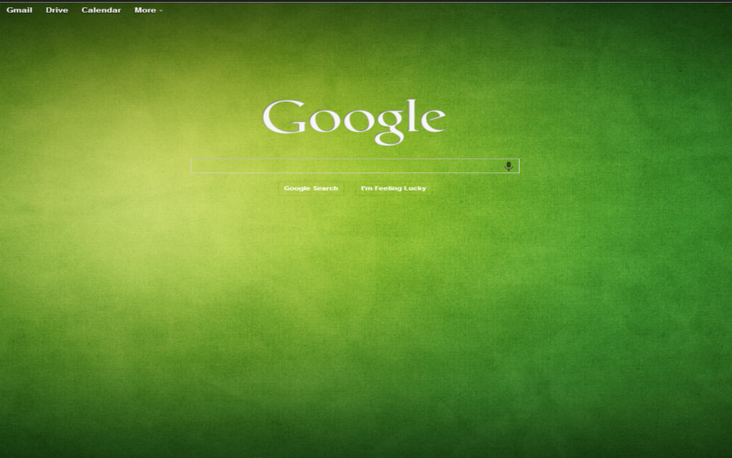
Google Green
- Click the button below to install
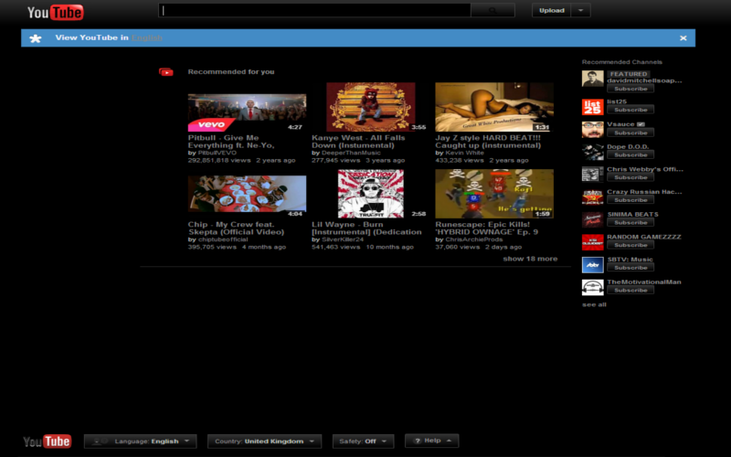
YouTube Black - Click the button below to install
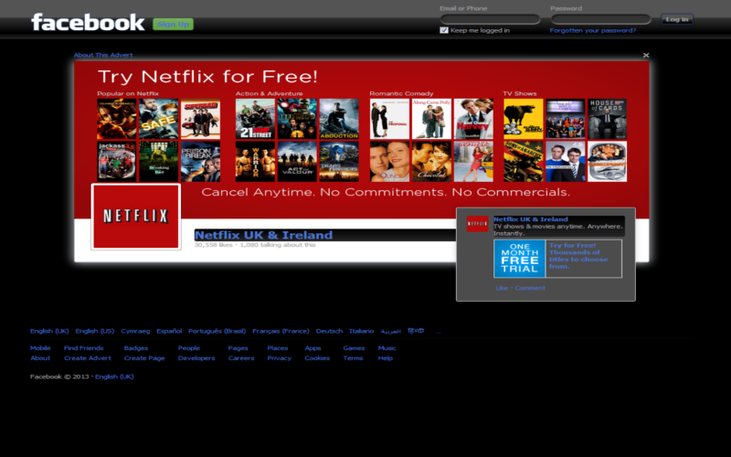
FaceBook Black - Click the button below to install
So that's how you can easily customize the appearance of webpages quickly and safely. I forgot to mention that to remove a theme, simply visit the webpage, click on the Stylish icon and click delete. It will then be deleted.
Thanks for reading, hope you enjoyed and please take a few more minutes to look at my other articles.
Thanks for reading, hope you enjoyed and please take a few more minutes to look at my other articles.

Berrytech
