
How To Remove The Recycle Bin From Your Desktop & Add It To Your Taskbar
If you're like me and like a clean Desktop, or maybe you're using Rocketdock and have no use for the one on your Desktop, then I'm going to show you how to remove it, and also how to add a shortcut to your Taskbar.
Please Note: I am running a Windows 7 operating system, so this may differ from Vista, XP and anything earlier.
Please Note: I am running a Windows 7 operating system, so this may differ from Vista, XP and anything earlier.
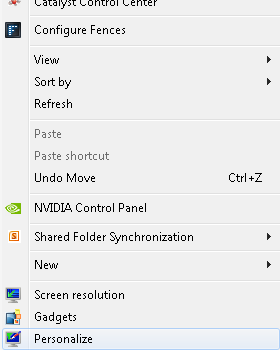
Step 1) Let's start by removing it from the Desktop. First, start by right-clicking anywhere, and clicking on 'Personalize'
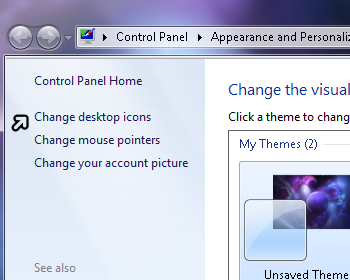
Step 2) Next, on the left you'll see some links, under the 'Control Panel Home' link. Click on 'Change Desktop Icons' and a little window will pop up.
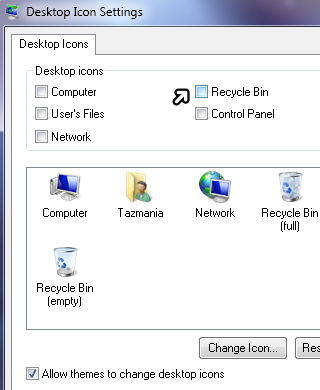
Step 3) Once this has popped up. You can choose which icons you want and don't want displayed on your Desktop. Simply ensure the Recycle Bin is unchecked and that's it! You have successfully removed it from your Desktop.
How To Add a Recycle Bin Shortcut To Your Taskbar
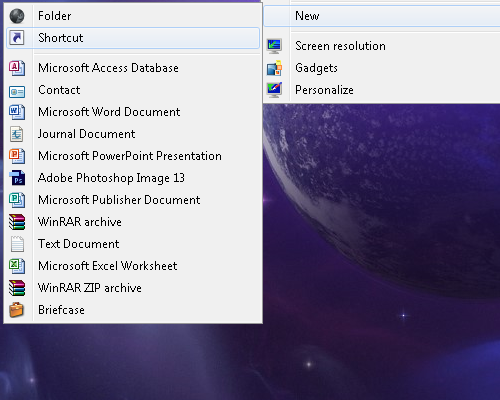
Step 1) Start by what you did first, right-click on the Desktop, but this time hover your cursor over 'New' and click 'Shortcut'. This will bring up the shortcut setup window.
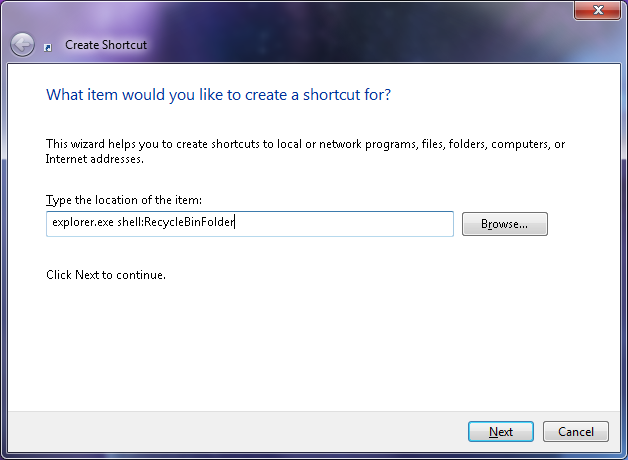
Step 2) In the location text box, copy and paste the following...
explorer.exe shell:RecycleBinFolder
and then click on the 'Next' button.
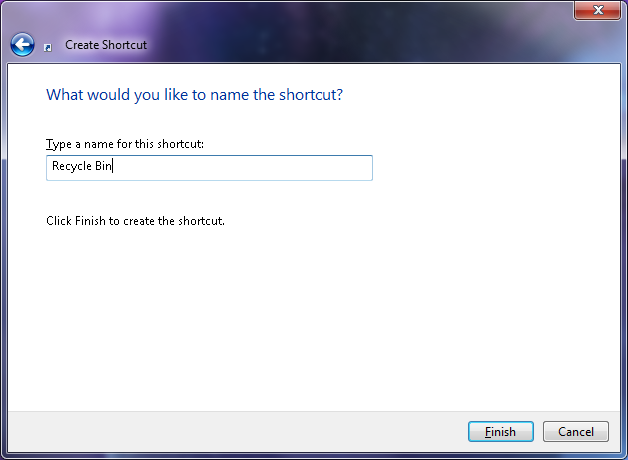
Step 3) Now it will ask for a shortcut name, by default it will usually be 'explorer.exe' but you can rename this to anything you want. For this tutorial, I will name it Recycle Bin.
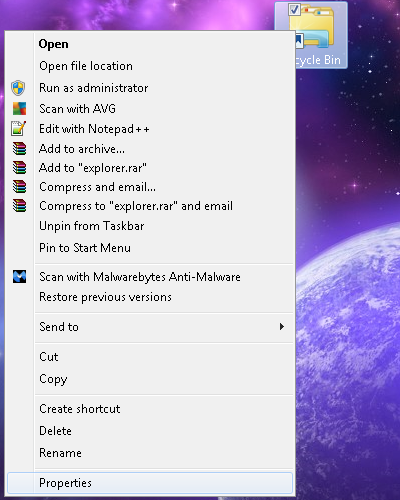
Step 4) Now you have your very own Recycle Bin, on your Desktop again... Don't worry. First let's change it to the Recycle Bin icon, by right-clicking it and selecting 'Properties'.
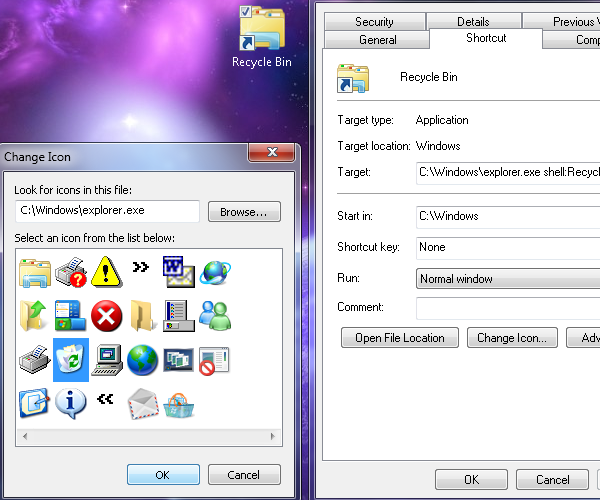
Step 5) Now, on the Shortcut tab, you'll find a button at the bottom saying 'Change Icon' click this and select the Recycle Bin icon. You can also download icons from several websites that offer a huge variety of icons. Once your happy with your icon, click apply and OK.
Step 6) Now you have a replica of the Recycle Bin, but you can actually right click it and click 'Add To Taskbar' Then simply delete the shortcut from your Desktop and you're done.

So that's it. You have added a Recycle Bin to your Taskbar and removed it from the Desktop. I hope you enjoyed my tutorial, please take a minute to take a look at my other articles.
Thanks!

Berrytech
